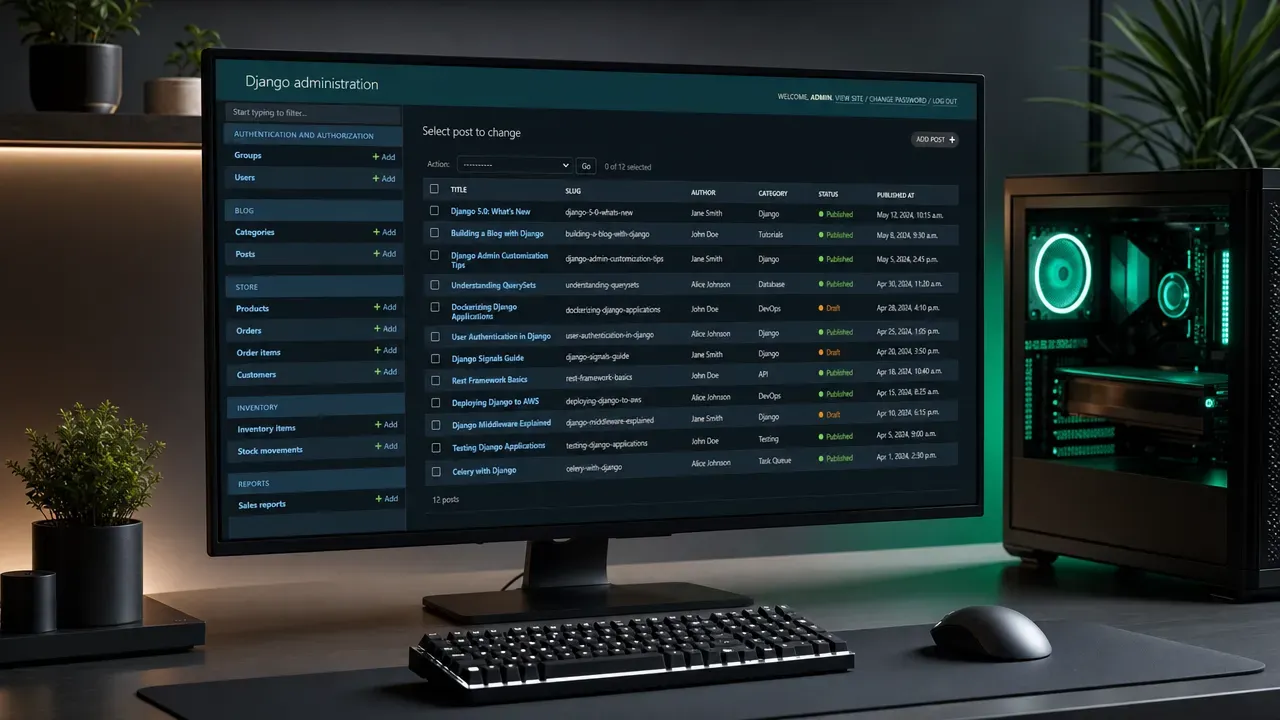
Django’s admin interface is a powerful tool that streamlines the management of your application’s data. It provides a ready-to-use interface for managing models, allowing developers to focus on the business logic rather than the intricacies of user interface design. By default, Django’s admin comes with a clean and intuitive design, but understanding how to leverage its capabilities can significantly enhance productivity.
To get started, you need to register your models with the admin site. This is typically done in the admin.py file of your app. Here’s a simple example:
from django.contrib import admin
from .models import MyModel

admin.site.register(MyModel)
Once registered, you can navigate to the admin interface and see your model represented as a table. But this is just the beginning. You can customize how your model is displayed by creating a custom admin class.
Consider the following code snippet, which adds search functionality and filters to your model in the admin panel:
from django.contrib import admin
from .models import MyModel

class MyModelAdmin(admin.ModelAdmin):
    search_fields = ['name', 'description']
    list_filter = ['category']

admin.site.register(MyModel, MyModelAdmin)
This setup allows administrators to quickly find records based on the name or description fields while also filtering results by category. The admin interface automatically generates a search box and filter sidebar, improving the usability for non-technical users.
Another powerful feature is the ability to override default templates. If you need to customize the appearance of certain pages, you can create a directory structure in your templates folder that matches Django’s default admin templates. For example, to modify the change list template for your model, you would create the following path:
myapp/templates/admin/myapp/mymodel/change_list.html
Inside this file, you can use Django’s template language to customize the layout, add additional information, or even include custom JavaScript for enhanced interactions. This level of customization allows you to create a more tailored experience suited to your application’s specific requirements.
Furthermore, you can enhance the functionality of your admin panel by adding actions that can be performed on multiple objects at the same time. For instance, if you want to add a bulk delete action to your model, you can do it like this:
class MyModelAdmin(admin.ModelAdmin):
    actions = ['delete_selected']

    def delete_selected(self, request, queryset):
        queryset.delete()
        self.message_user(request, "Selected items have been deleted.")

admin.site.register(MyModel, MyModelAdmin)
This code snippet adds a new action to the admin interface, allowing users to delete selected entries with a single click. The ability to create such batch operations can significantly reduce the time spent on repetitive tasks.
As you delve deeper into Django’s admin interface, you’ll find that its extensibility is one of its greatest strengths. From custom fields to third-party packages that enhance functionality, there’s a treasure trove of options to explore. For example, integrating packages like django-admin-sortable2 allows you to easily manage the order of objects directly within the admin panel, bringing additional convenience to the content management experience.
In essence, using Django’s admin interface not only simplifies backend management but also empowers users to interact with the data in a meaningful way. By taking advantage of the customization options and extending its capabilities, you can create a robust management tool that meets the unique needs of your application and its users. As you implement these features…

Anker Cable [2 Pack 3ft], USB A to USB C Cable for iPhone 17 Series,Samsung Galaxy S10 S10+, LG V30, Beats Fit Pro and More (Black).
$8.99 (as of June 10, 2026 04:28 GMT +00:00 - More infoProduct prices and availability are accurate as of the date/time indicated and are subject to change. Any price and availability information displayed on [relevant Amazon Site(s), as applicable] at the time of purchase will apply to the purchase of this product.)Customizing the admin panel for unique needs
…consider the implications of user roles and permissions within the admin interface. Django provides a built-in permissions framework that allows you to control access to various actions and models. By defining user groups and assigning specific permissions, you can tailor the admin experience to different user roles. For example, you might want to restrict certain users from deleting records or accessing sensitive data.
To implement this, you can define permissions in your model like so:
from django.db import models

class MyModel(models.Model):
    name = models.CharField(max_length=100)
    description = models.TextField()

    class Meta:
        permissions = [
            ("can_delete_records", "Can delete records"),
        ]
After defining custom permissions, you can check these permissions in your admin class, allowing you to conditionally display options based on user capabilities:
class MyModelAdmin(admin.ModelAdmin):
    def has_delete_permission(self, request, obj=None):
        return request.user.has_perm('myapp.can_delete_records')

admin.site.register(MyModel, MyModelAdmin)
This approach ensures that only users with the appropriate permissions can perform sensitive actions, enhancing the security of your application. Additionally, customizing the admin interface with JavaScript can lead to a more dynamic user experience. For instance, you can implement AJAX calls to update data without requiring a page refresh.
Here’s a simple example of how you might add a custom JavaScript file to your admin interface:
from django.contrib import admin
from django.utils.safestring import mark_safe

class MyModelAdmin(admin.ModelAdmin):
    class Media:
        js = ('myapp/js/custom_script.js',)

admin.site.register(MyModel, MyModelAdmin)
In the specified JavaScript file, you can write functions that enhance user interactions, such as validating forms or updating fields based on user input dynamically. This kind of interactivity can significantly improve the usability of the admin panel, making it more efficient for users to manage data.
Another method to improve your admin interface is through the use of custom forms. By creating a custom form for your admin model, you can add validation logic or modify how fields are rendered:
from django import forms

class MyModelForm(forms.ModelForm):
    class Meta:
        model = MyModel
        fields = '__all__'

    def clean_name(self):
        name = self.cleaned_data.get('name')
        if "forbidden" in name:
            raise forms.ValidationError("This name is not allowed.")
        return name

class MyModelAdmin(admin.ModelAdmin):
    form = MyModelForm

admin.site.register(MyModel, MyModelAdmin)
This example demonstrates how to enforce specific validation rules on the name field, ensuring that data integrity is maintained at the point of entry. Custom forms provide a powerful way to enforce business logic directly within your admin interface.
As you continue to explore Django’s admin capabilities, consider the advantages of integrating third-party libraries that can enhance your application’s functionality even further. Libraries such as django-import-export facilitate data import and export operations, while django-admin-ajax can streamline data loading processes for large datasets. By carefully selecting and integrating these tools, you can create a more powerful and efficient admin experience that…
Optimizing backend management workflows with Django admin
…addresses the complexities of your backend workflows. Optimizing these workflows often involves tailoring the admin to fit the natural processes of your organization rather than forcing users into a generic interface.
One effective optimization technique is to use inline models to manage related objects directly within the parent object’s admin page. This reduces context switching and allows for quicker data entry and review. For example, if you have a Book model and an associated Author model, you can define an inline admin like this:
from django.contrib import admin
from .models import Book, Author

class AuthorInline(admin.TabularInline):
    model = Author
    extra = 1  # Number of extra forms to show

class BookAdmin(admin.ModelAdmin):
    inlines = [AuthorInline]

admin.site.register(Book, BookAdmin)
This setup lets you add or edit authors directly on the book’s admin page, streamlining the process of managing related data. You can also choose between TabularInline and StackedInline depending on the complexity and layout requirements.
Another way to speed up backend operations is by customizing list display columns and making them sortable. This helps users find and organize data efficiently. For example:
class MyModelAdmin(admin.ModelAdmin):
    list_display = ('name', 'category', 'created_at', 'is_active')
    list_editable = ('is_active',)
    ordering = ('-created_at',)

admin.site.register(MyModel, MyModelAdmin)
Here, list_editable allows inline editing of the is_active boolean field directly from the list view, eliminating the need to open each object separately. The ordering attribute sorts entries by the newest first, which is often desirable in admin workflows.
For even more complex scenarios, you can define custom filters that go beyond simple field lookups. Django’s SimpleListFilter lets you create filters with custom logic. For example, if you want to filter users by whether they have logged in recently, you might write:
from django.contrib import admin
from django.utils.timezone import now, timedelta
from .models import UserProfile

class RecentLoginFilter(admin.SimpleListFilter):
    title = 'recent login'
    parameter_name = 'recent_login'

    def lookups(self, request, model_admin):
        return (
            ('yes', 'Logged in last 7 days'),
            ('no', 'Not logged in last 7 days'),
        )

    def queryset(self, request, queryset):
        if self.value() == 'yes':
            cutoff = now() - timedelta(days=7)
            return queryset.filter(last_login__gte=cutoff)
        if self.value() == 'no':
            cutoff = now() - timedelta(days=7)
            return queryset.filter(last_login__lt=cutoff)
        return queryset

class UserProfileAdmin(admin.ModelAdmin):
    list_filter = (RecentLoginFilter,)

admin.site.register(UserProfile, UserProfileAdmin)
Custom filters like this one provide administrators with powerful tools for segmenting data according to business rules, making it easier to locate relevant records quickly.
Bulk editing capabilities can also be extended by writing custom admin actions that perform complex updates. For example, suppose you want to mark a batch of orders as shipped and send notification emails:
from django.core.mail import send_mail

class OrderAdmin(admin.ModelAdmin):
    actions = ['mark_as_shipped']

    def mark_as_shipped(self, request, queryset):
        updated = queryset.update(status='shipped')
        for order in queryset:
            send_mail(
                'Your order has shipped',
                f'Order #{order.id} is now shipped.',
                '[email protected]',
                [order.customer_email],
                fail_silently=True,
            )
        self.message_user(request, f"{updated} orders marked as shipped and emails sent.")
    mark_as_shipped.short_description = "Mark selected orders as shipped"

admin.site.register(Order, OrderAdmin)
This example highlights how Django admin actions can be combined with other Django features like email sending to automate complex workflows.
Finally, performance tuning is important when working with large datasets in the admin. Using list_select_related and list_prefetch_related can reduce the number of database queries and speed up page loads:
class MyModelAdmin(admin.ModelAdmin):
    list_display = ('name', 'related_model_field')
    list_select_related = ('related_model',)

admin.site.register(MyModel, MyModelAdmin)
By instructing Django to use SQL joins to fetch related objects in a single query, you avoid the N+1 query problem, which can severely degrade performance. For many-to-many relationships, prefetch_related is recommended to optimize query efficiency.