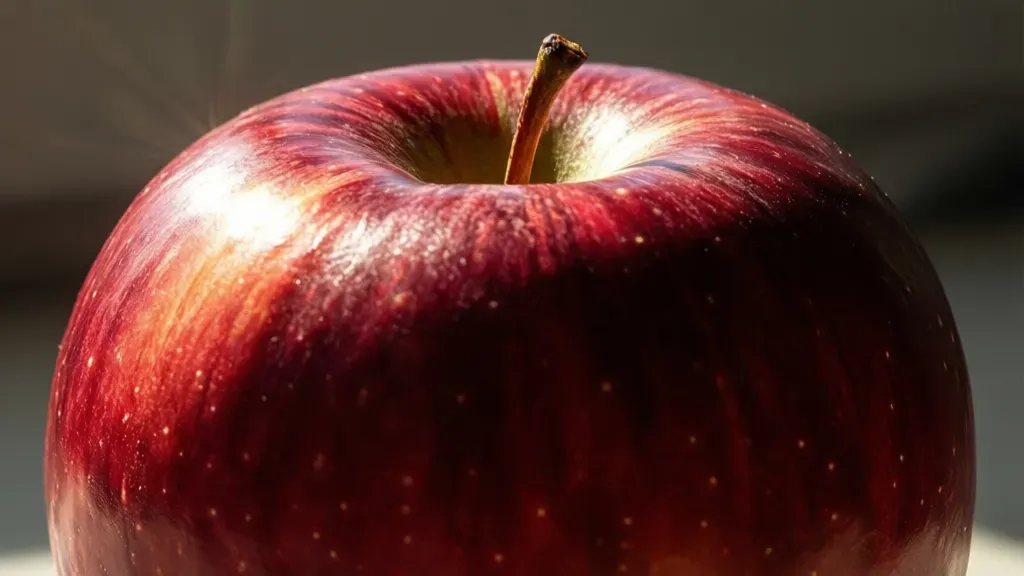
Adjusting brightness and contrast is fundamental in image processing, enabling you to improve the visual charm of images. The objective is to ensure that the image retains its details while making it more vibrant. A simpler approach to achieve this in Python is through the use of libraries like PIL (Pillow) or OpenCV.
With Pillow, you can easily manipulate the brightness and contrast of an image using the ImageEnhance module. Here’s a quick example:
from PIL import Image
from PIL import ImageEnhance

# Load the image
image = Image.open('path/to/your/image.jpg')

# Enhance brightness
enhancer = ImageEnhance.Brightness(image)
brightened_image = enhancer.enhance(1.5)  # Factor > 1 increases brightness

# Enhance contrast
enhancer = ImageEnhance.Contrast(brightened_image)
contrasted_image = enhancer.enhance(1.5)  # Factor > 1 increases contrast

# Save the modified image
contrasted_image.save('path/to/your/bright_contrasted_image.jpg')
This code snippet loads an image and applies enhancements to both brightness and contrast. The enhance method takes a factor; values greater than 1 will increase brightness or contrast, while values between 0 and 1 will decrease them.
Another effective method involves using OpenCV, which provides more control over the pixel values directly. This can be particularly useful for batch processing or when you need more complex manipulations:
import cv2

# Load the image
image = cv2.imread('path/to/your/image.jpg')

# Convert to float to prevent clipping
image_float = image.astype('float32')

# Adjust brightness and contrast
brightness = 50  # Increase brightness
contrast = 1.5   # Increase contrast
adjusted_image = cv2.convertScaleAbs(image_float, alpha=contrast, beta=brightness)

# Save the modified image
cv2.imwrite('path/to/your/adjusted_image.jpg', adjusted_image)
In this example, convertScaleAbs adjusts both brightness and contrast in a single step. The alpha parameter controls the contrast, while the beta parameter adjusts the brightness. This method is efficient and works well with high-resolution images.
When using these techniques, it’s crucial to experiment with different values to achieve the desired effect. The balance between brightness and contrast can significantly impact how an image is perceived. It’s also worth noting that extreme adjustments can lead to loss of detail in highlight or shadow areas. Properly managing these factors ensures that the enhancements result in a pleasing visual outcome without compromising the integrity of the original image.
Beyond simple adjustments, you can also consider more advanced techniques like histogram equalization to improve the contrast dynamically across the entire image. OpenCV provides a simpler implementation for this as well:
# Convert to grayscale for histogram equalization
gray_image = cv2.cvtColor(image, cv2.COLOR_BGR2GRAY)

# Apply histogram equalization
equalized_image = cv2.equalizeHist(gray_image)

# Save the equalized image
cv2.imwrite('path/to/your/equalized_image.jpg', equalized_image)
This method redistributes the pixel values, making it particularly useful for images that are too dark or too light overall. In combination with the previous techniques, you can achieve a significant improvement in the visual quality of your images. Further, consider the context of the images—certain adjustments may work better for portraits versus landscapes, for example. Fine-tuning these parameters based on the subject matter can lead to more satisfying results.
Sport Silicone Band Compatible with Apple Watch Bands 40mm 38mm 41mm 44mm 45mm 42mm 49mm Women Men,Soft Wristband Waterproof Replacement Sport Strap for iWatch Bands Series 9 8 7 6 5 4 3 2 1 SE Ultra
$6.96 (as of June 12, 2026 05:51 GMT +00:00 - More infoProduct prices and availability are accurate as of the date/time indicated and are subject to change. Any price and availability information displayed on [relevant Amazon Site(s), as applicable] at the time of purchase will apply to the purchase of this product.)Applying filters for creative image transformations
Filters can transform an image in various creative ways, which will allow you to apply effects that can enhance the artistic quality of your photographs. Python libraries like Pillow and OpenCV offer a range of built-in filters for this purpose. These filters can be used to blur, sharpen, or apply stylized effects to images.
Using Pillow, applying a filter is simpler. The ImageFilter module provides several predefined filters. Here’s how you can apply a Gaussian blur to an image:
from PIL import Image, ImageFilter

# Load the image
image = Image.open('path/to/your/image.jpg')

# Apply Gaussian blur
blurred_image = image.filter(ImageFilter.GaussianBlur(radius=5))

# Save the modified image
blurred_image.save('path/to/your/blurred_image.jpg')
The GaussianBlur filter smooths the image by averaging the pixels around each point, which can be useful for reducing noise or creating a dreamy effect. The radius parameter controls the extent of the blur; a larger value results in a more pronounced effect.
OpenCV also provides a rich set of filters. For instance, you can use the filter2D function to apply custom convolution kernels. Here’s an example of using a sharpening kernel:
import cv2
import numpy as np

# Load the image
image = cv2.imread('path/to/your/image.jpg')

# Define a sharpening kernel
kernel = np.array([[0, -1, 0],
                   [-1, 5, -1],
                   [0, -1, 0]])

# Apply the filter
sharpened_image = cv2.filter2D(image, -1, kernel)

# Save the modified image
cv2.imwrite('path/to/your/sharpened_image.jpg', sharpened_image)
This sharpening kernel enhances the edges in the image, making it appear crisper. The values in the kernel determine how much emphasis is placed on the surrounding pixels, thus impacting the overall sharpness.
Additionally, you can explore more artistic filters. For example, applying a sepia tone can give your images a vintage feel. Here’s how you can achieve that with NumPy and OpenCV:
# Define a sepia filter
sepia_filter = np.array([[0.272, 0.534, 0.131],
                          [0.349, 0.686, 0.168],
                          [0.393, 0.769, 0.189]])

# Apply the sepia filter
sepia_image = cv2.transform(image, sepia_filter)

# Clip values to stay within valid range
sepia_image = np.clip(sepia_image, 0, 255).astype(np.uint8)

# Save the modified image
cv2.imwrite('path/to/your/sepia_image.jpg', sepia_image)
This code snippet applies a sepia tone by transforming the image with a specific matrix that alters the RGB values, creating a warm, nostalgic appearance. The np.clip function ensures that the pixel values remain within the valid range after the transformation.
Experimenting with various filters can lead to unique artistic styles. Additionally, combining multiple filters in sequence can yield even more intriguing results, allowing for a greater degree of customization and creativity in your image processing projects.