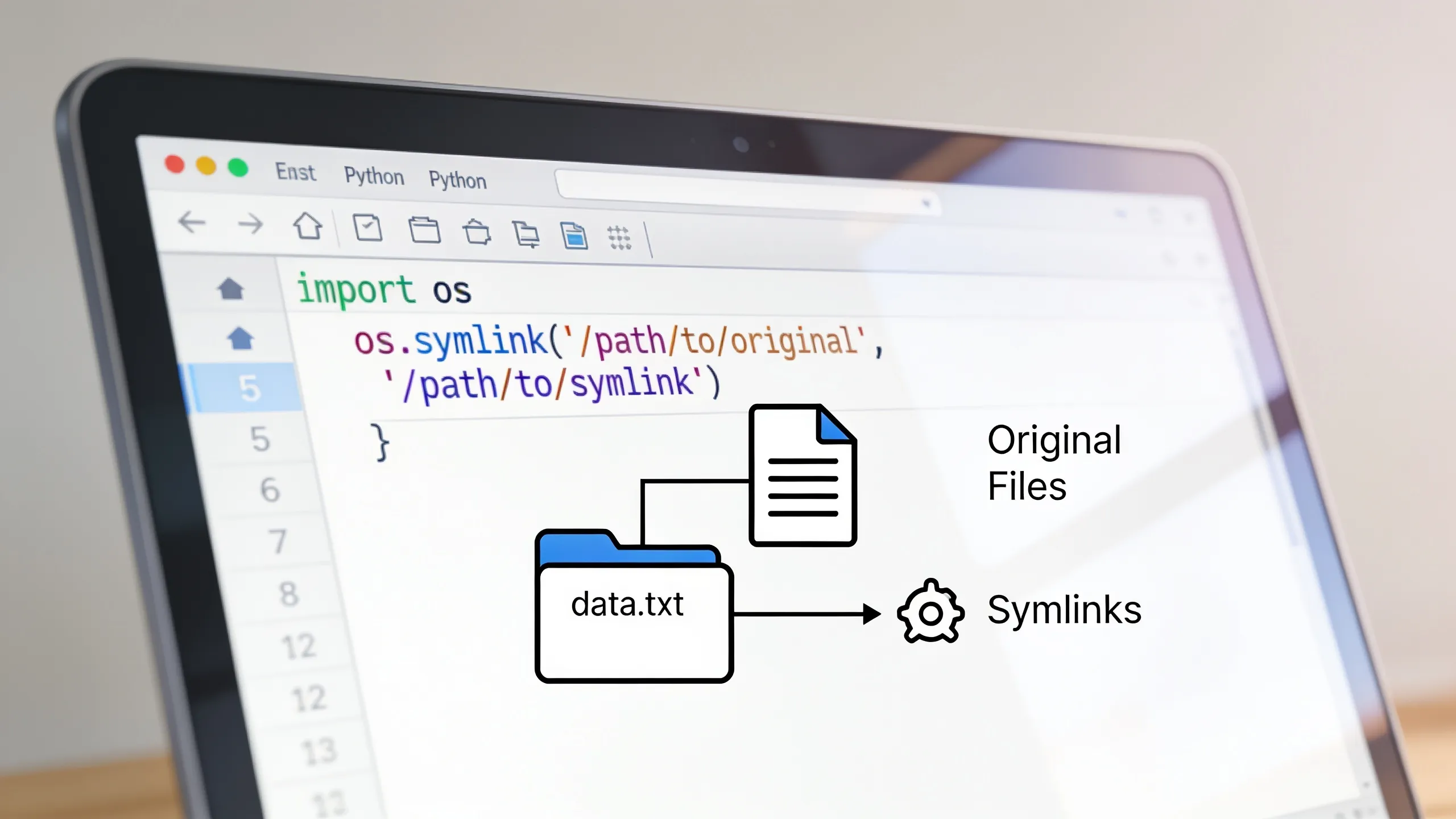
Symbolic links, or symlinks, are a powerful feature in file systems that allow you to create a reference to another file or directory. This can save space and help manage files more efficiently. When you create a symlink, you are essentially creating a pointer that redirects to the original file, meaning that any access to the symlink will be redirected to the target file.
One of the most common use cases for symlinks is in development environments. For instance, if you have several projects that depend on a shared library, you can create a symlink to that library in each project directory instead of copying the library files around. This not only saves disk space but also ensures that all projects are using the same version of the library.
Another practical application is in the context of configuration files. Many applications, like web servers, have configuration files that are often changed or updated. By placing your configuration file in a single location and creating symlinks to it from various application directories, you can ensure that updates are reflected everywhere without the need for multiple copies.
Symlinks can also be beneficial when working with containerized applications. For instance, you might have a symlink that points to a directory containing shared resources, allowing different containers to access the same files without redundancy.
However, it is essential to understand the potential pitfalls of using symlinks. If the target of a symlink is moved or deleted, the symlink will break, leading to errors when the application tries to access it. This scenario can cause significant issues, especially in production environments, so careful management of symlinks very important.
When dealing with symlinks, tools and functions provided by the operating system come into play. In Python, the os module includes a function called os.symlink that can be used to create symbolic links directly from your scripts. By using this functionality, you can automate the management of symlinks as part of your deployment or setup processes.

MNN Portable Monitor 15.6inch FHD 1080P 60Hz USB C HDMI Gaming Ultra-Slim IPS Display w/Smart Cover & Speakers,HDR Plug&Play, External Monitor for Laptop PC Phone Mac (15.6'' 1080P)
$49.99 (as of July 6, 2026 13:48 GMT +00:00 - More infoProduct prices and availability are accurate as of the date/time indicated and are subject to change. Any price and availability information displayed on [relevant Amazon Site(s), as applicable] at the time of purchase will apply to the purchase of this product.)Implementing os.symlink with practical examples
The os.symlink function in Python requires two arguments: the target path and the link path. The target path is the file or directory you want to point to, while the link path is the name of the symlink that will be created. Here’s a simpler example of how to use it:
import os

# Create a symbolic link
target = '/path/to/original/file.txt'
link_name = '/path/to/symlink/file_link.txt'

os.symlink(target, link_name)
This code snippet creates a symlink named file_link.txt that points to file.txt. When you access file_link.txt, it will redirect you to file.txt.
When working with symlinks, it is also beneficial to check if they already exist to avoid overwriting. You can use os.path.exists to verify the existence of the target or the symlink before creating it. Here’s how you might implement this:
if not os.path.exists(link_name):
    os.symlink(target, link_name)
else:
    print("Symlink already exists.")
This approach ensures that you don’t accidentally create a symlink that points to an unintended location or overwrite an existing symlink.
Another useful aspect of os.symlink is its ability to create relative symlinks. This can be particularly useful in projects where the directory structure may change. To create a relative symlink, you can calculate the relative path from the symlink’s location to the target. Here’s an example:
import os

# Define the target and link paths
target = 'documents/report.txt'  # Relative path
link_name = 'report_link.txt'      # Symlink name

# Create a relative symbolic link
os.symlink(target, link_name)
In this example, if report_link.txt is in the same directory as the documents folder, it will correctly point to report.txt regardless of the absolute path.
For debugging purposes, you might want to read the target of a symlink to ensure it points where you expect it to. The os.readlink function can be used for this. Here’s how it can be done:
link_target = os.readlink(link_name)
print(f"The symlink points to: {link_target}")
This will print the path to which the symlink is pointing, allowing you to verify that everything is set up correctly.